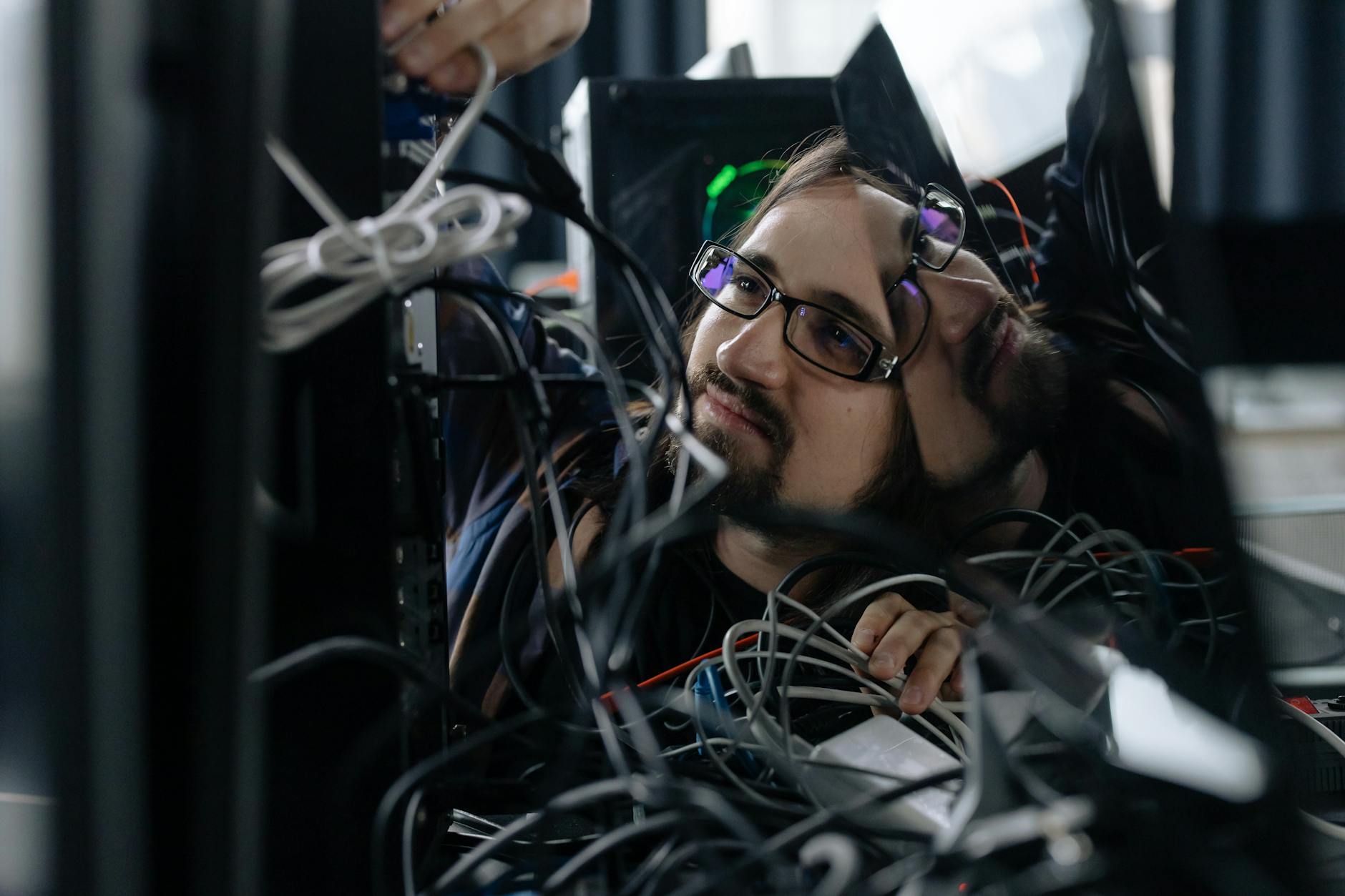
Troubleshooting Driver Power State Failure and Persistent Driver Issues
Encountering a DRIVER_POWER_STATE_FAILURE Blue Screen of Death (BSOD) can disrupt your work and signal deeper driver issues. This guide provides practical steps for resolving these problems.
Introduction to DRIVER_POWER_STATE_FAILURE
The DRIVER_POWER_STATE_FAILURE BSOD typically occurs due to improper configurations or faulty drivers, leading to system instability. Understanding its root causes can help mitigate future occurrences.
Common Causes and Symptoms
Common causes include incorrect power settings, faulty drivers, or conflicts between new and existing drivers. Symptoms often manifest as lagging performance or failure to wake from sleep mode.
Step 1: Preliminary Checks
Begin with these preliminary checks:
- Ensure all Windows updates are installed.
- Check for manufacturer-specific driver updates.
- Confirm hardware power settings are optimized.
Step 2: Reset Windows Update Components
Resetting Windows Update components can rectify issues by refreshing system files:
net stop wuauserv
dism /online /cleanup-image /restorehealth
net start wuauserv
Step 3: Manual Driver Installation
If automatic updates fail, manually reinstall drivers:
devmgmt.mscAccess Device Manager, locate the problematic driver, and select ‘Update Driver’.
Step 4: Event Viewer Analysis
Use Event Viewer to investigate deeper issues by examining critical errors and warnings:
Search for related errors under the ‘System’ logs.
Step 5: Advanced Solutions and Third-Party Tools
Consider advanced tools like Driver Verifier for stress-testing drivers. Third-party software can also assist in identifying and updating outdated drivers.
Conclusion and Best Practices
Consistently update drivers and monitor for conflicts. Regular system health checks using commands like sfc /scannow can prevent future BSODs.
Sources
You can find related discussions and solutions on Reddit.
Transparency Note: AI assisted in writing this guide, and automation verified sources for accuracy.